Showing posts with label 2005. Show all posts

Code To Disable X(Close) Button On Your Form

Friday, 8 July 2011
Just Add The Following Code Anywhere In Your Windows Application And Your X(Close) Button Will Be Disables.
private const int dis_close_button = 0x200;
protected override CreateParams CreateParams
{
get
{
CreateParams ObjCP = base.CreateParams;
ObjCP.ClassStyle = ObjCP.ClassStyle | dis_close_button ;
return ObjCP;
}
}

How To Draw Star On Your Windows Application

USING C#

  • First Of All Open New Windows Application.
  • Add Following Namespaces.

using System;
using System.Collections.Generic;
using System.ComponentModel;
using System.Data;
using System.Drawing;
using System.Text;
using System.Windows.Forms;
using System.Drawing.Drawing2D;

namespace Draw
{
public class DrawingForm : Form
{
public DrawingForm() //Create Constructor
{
//InitializeComponent
this.Text = "My drawings";
this.Size = new Size(600, 600);
this.Paint += new PaintEventHandler(MyPainting);
}

private void MyPainting(object sender, PaintEventArgs e)
{
Graphics G = e.Graphics;
G.SmoothingMode = SmoothingMode.HighQuality;

PointF[] Star1 = Calculate5StarPoints(new PointF(100f, 100f), 50f, 20f);
SolidBrush FillBrush = new SolidBrush(Color.Pink);
G.FillPolygon(FillBrush, Star1);
G.DrawPolygon(new Pen(Color.Purple, 5), Star1);

PointF[] Star2 = Calculate5StarPoints(new PointF(200f, 150f), 100f, 20f);
HatchBrush pat = new HatchBrush(HatchStyle.Cross, Color.RosyBrown, Color.IndianRed);
G.FillPolygon(pat, Star2);

PointF[] Star3 = Calculate5StarPoints(new PointF(350f, 300f), 200f, 100f);
LinearGradientBrush lin = new LinearGradientBrush(new Point(350, 100), new Point(350, 500),
Color.Salmon, Color.Cyan);
G.FillPolygon(lin, Star3);

PointF[] Star4 = Calculate5StarPoints(new PointF(140f, 400f), 120f, 10f);
G.DrawPolygon(new Pen(Color.LightSalmon, 3), Star4);
}
private PointF[] Calculate5StarPoints(PointF Orig, float outerradius, float innerradius)
{
double Ang36 = Math.PI / 5.0; // 36° x PI/180
double Ang72 = 2.0 * Ang36; // 72° x PI/180
float Sin36 = (float)Math.Sin(Ang36);
float Sin72 = (float)Math.Sin(Ang72);
float Cos36 = (float)Math.Cos(Ang36);
float Cos72 = (float)Math.Cos(Ang72);

PointF[] pnts = { Orig, Orig, Orig, Orig, Orig, Orig, Orig, Orig, Orig, Orig };
pnts[0].Y -= outerradius; // top off the star, or on a clock this is 12:00 or 0:00 hours
pnts[1].X += innerradius * Sin36; pnts[1].Y -= innerradius * Cos36; // 0:06 hours
pnts[2].X += outerradius * Sin72; pnts[2].Y -= outerradius * Cos72; // 0:12 hours
pnts[3].X += innerradius * Sin72; pnts[3].Y += innerradius * Cos72; // 0:18
pnts[4].X += outerradius * Sin36; pnts[4].Y += outerradius * Cos36; // 0:24
pnts[5].Y += innerradius;
pnts[6].X += pnts[6].X - pnts[4].X; pnts[6].Y = pnts[4].Y; // mirror point
pnts[7].X += pnts[7].X - pnts[3].X; pnts[7].Y = pnts[3].Y; // mirror point
pnts[8].X += pnts[8].X - pnts[2].X; pnts[8].Y = pnts[2].Y; // mirror point
pnts[9].X += pnts[9].X - pnts[1].X; pnts[9].Y = pnts[1].Y; // mirror point
return pnts;
}

private void InitializeComponent()
{
this.SuspendLayout();

this.ClientSize = new System.Drawing.Size(292, 266);
this.Name = "DrawingForm";
this.Load += new System.EventHandler(this.DrawingForm_Load);
this.ResumeLayout(false);

}

private void DrawingForm_Load(object sender, EventArgs e)
{
}
}

public class Program
{
[STAThread]
public static int Main()
{
Application.Run(new DrawingForm());
return 0;
}
}
}

USING VB
The Above Code Will Look As follows When Writen In VB.

Imports System.Collections.Generic
Imports System.ComponentModel
Imports System.Data
Imports System.Drawing
Imports System.Text
Imports System.Windows.Forms
Imports System.Drawing.Drawing2D

Namespace Draw
Public Class DrawingForm
Inherits Form

Public Sub New()


Me.Text = "My drawings"
Me.Size = New Size(600, 600)
AddHandler Me.Paint, New PaintEventHandler(AddressOf MyPainting)
End Sub

Private Sub MyPainting(sender As Object, e As PaintEventArgs)
Dim G As Graphics = e.Graphics
G.SmoothingMode = SmoothingMode.HighQuality

Dim Star1 As PointF() = Calculate5StarPoints(New PointF(100F, 100F), 50F, 20F)
Dim FillBrush As New SolidBrush(Color.Pink)
G.FillPolygon(FillBrush, Star1)
G.DrawPolygon(New Pen(Color.Purple, 5), Star1)

Dim Star2 As PointF() = Calculate5StarPoints(New PointF(200F, 150F), 100F, 20F)
Dim pat As New HatchBrush(HatchStyle.Cross, Color.RosyBrown, Color.IndianRed)
G.FillPolygon(pat, Star2)

Dim Star3 As PointF() = Calculate5StarPoints(New PointF(350F, 300F), 200F, 100F)
Dim lin As New LinearGradientBrush(New Point(350, 100), New Point(350, 500), Color.Salmon, Color.Cyan)
G.FillPolygon(lin, Star3)

Dim Star4 As PointF() = Calculate5StarPoints(New PointF(140F, 400F), 120F, 10F)
G.DrawPolygon(New Pen(Color.LightSalmon, 3), Star4)
End Sub

Private Function Calculate5StarPoints(Orig As PointF, outerradius As Single, innerradius As Single) As PointF()
Dim Ang36 As Double = Math.PI / 5.0
Dim Ang72 As Double = 2.0 * Ang36
Dim Sin36 As Single = CSng(Math.Sin(Ang36))
Dim Sin72 As Single = CSng(Math.Sin(Ang72))
Dim Cos36 As Single = CSng(Math.Cos(Ang36))
Dim Cos72 As Single = CSng(Math.Cos(Ang72))

Dim pnts As PointF() = {Orig, Orig, Orig, Orig, Orig, Orig, _
Orig, Orig, Orig, Orig}
pnts(0).Y -= outerradius

pnts(1).X += innerradius * Sin36
pnts(1).Y -= innerradius * Cos36

pnts(2).X += outerradius * Sin72
pnts(2).Y -= outerradius * Cos72

pnts(3).X += innerradius * Sin72
pnts(3).Y += innerradius * Cos72


pnts(4).X += outerradius * Sin36
pnts(4).Y += outerradius * Cos36

pnts(5).Y += innerradius

pnts(6).X += pnts(6).X - pnts(4).X
pnts(6).Y = pnts(4).Y


pnts(7).X += pnts(7).X - pnts(3).X
pnts(7).Y = pnts(3).Y

pnts(8).X += pnts(8).X - pnts(2).X
pnts(8).Y = pnts(2).Y
pnts(9).X += pnts(9).X - pnts(1).X
pnts(9).Y = pnts(1).Y
Return pnts
End Function

Private Sub InitializeComponent()
Me.SuspendLayout()

Me.ClientSize = New System.Drawing.Size(292, 266)
Me.Name = "DrawingForm"
AddHandler Me.Load, New System.EventHandler(AddressOf Me.DrawingForm_Load)
Me.ResumeLayout(False)

End Sub

Private Sub DrawingForm_Load(sender As Object, e As EventArgs)

End Sub
End Class

Public Class Program

Public Shared Function Main() As Integer
Application.Run(New DrawingForm())
 

Return 0
 

End Function
End Class
End Namespace

Unable to evaluate expression because the code is optimized or a native frame is on top of the call stack

Thursday, 7 July 2011
I got this error when using Response.Redirect in a Try-Catch. I'd never seen it before, but it is resolved by specifying 'false' after the URL like below. This tells the execution of the current page not to terminate: 

Response.Redirect("whatever.aspx",false);

Exporting WebPage To PDF File

  • In This You Will See How To Export Your WebPages Into PDF File.
  • First Of All Open New Website.
  • And Add Following Code Into Default.aspx Page.
<%@ Page Language="C#" AutoEventWireup="true" 
CodeFile="Default.aspx.cs" Inherits="_Default" %>

<!DOCTYPE html PUBLIC "-//W3C//DTD XHTML 1.0 Transitional//EN"
"http://www.w3.org/TR/xhtml1/DTD/xhtml1-transitional.dtd">

<html xmlns="http://www.w3.org/1999/xhtml" >
<head runat="server">
    <title>Untitled Page</title>
</head>
<body>
    <form id="form1" runat="server">
    <div>
        <asp:GridView ID="GridView1" runat="server"
             AutoGenerateColumns="False"
             DataSourceID="SqlDataSource1" Width="257px">
        <Columns>
             <asp:BoundField DataField="Name"
                  HeaderText="Name"
                  SortExpression="Name" />
             <asp:BoundField DataField="Location"
                  HeaderText="Location"
                  SortExpression="Location" />
        </Columns>
        </asp:GridView>
        <asp:SqlDataSource ID="SqlDataSource1"
             runat="server"
        ConnectionString="<%$ ConnectionStrings:ConnectionString %>"
        SelectCommand="SELECT [Name], [Location] FROM [Test]">
        </asp:SqlDataSource>
   
    </div>
        <br />
        <asp:Button ID="btnExport" runat="server"
             OnClick="btnExport_Click"
             Text="Export to PDF" />
       
    </form>
</body>
</html>
  • Now Add Following Code Into Default.aspx.cs Page
  • Namespaces Used:
using System;
using System.Data;
using System.Configuration;
using System.Web;
using System.Web.Security;
using System.Web.UI;
using System.Web.UI.WebControls;
using System.Web.UI.WebControls.WebParts;
using System.Web.UI.HtmlControls;
using iTextSharp.text;
using iTextSharp.text.pdf;
using iTextSharp.text.html;
using System.IO;
using System.Collections;
using System.Net;

public partial class _Default : System.Web.UI.Page
{
    protected void btnExport_Click(object sender, EventArgs e)
    {
        HtmlForm form = new HtmlForm();
        form.Controls.Add(GridView1);
        StringWriter sw = new StringWriter();
        HtmlTextWriter hTextWriter = new HtmlTextWriter(sw);
        form.Controls[0].RenderControl(hTextWriter);
        string html = sw.ToString();
        Document Doc = new Document();
               
        //PdfWriter.GetInstance
        //(Doc, new FileStream(Request.PhysicalApplicationPath
        //+ "\\VishalRane.pdf", FileMode.Create));

        PdfWriter.GetInstance(Doc, new FileStream(Environment.GetFolderPath
        (Environment.SpecialFolder.Desktop)+ "\\VishalRane.pdf", FileMode.Create));
        Doc.Open();
       
        Chunk c = new Chunk("Export GridView to PDF Using iTextSharp \n",FontFactory.GetFont("Verdana", 15));
        Paragraph p = new Paragraph();
        p.Alignment = Element.ALIGN_CENTER;
        p.Add(c);
        Chunk chunk1 = new Chunk("By Vishal RANE, vishalrane50@gmail.com \n",FontFactory.GetFont("Verdana", 8));
        Paragraph p1 = new Paragraph();
        p1.Alignment = Element.ALIGN_RIGHT;
        p1.Add(chunk1);
            
        Doc.Add(p);
        Doc.Add(p1);
               
        System.Xml.XmlTextReader xmlReader =
        new System.Xml.XmlTextReader(new StringReader(html));
        HtmlParser.Parse(Doc, xmlReader);
       
        Doc.Close();
        string Path = Environment.GetFolderPath(Environment.SpecialFolder.Desktop)+ "\\VishalRane.pdf";


        ShowPdf(Path);
      
       
    }
  • Now To Show PDF Use Following Code:
    private void ShowPdf(string strS)
    {
        Response.ClearContent();
        Response.ClearHeaders();
        Response.ContentType = "application/pdf";
        Response.AddHeader("Content-Disposition","attachment; filename=" + strS);
        Response.TransmitFile(strS);
        Response.End();
        //Response.WriteFile(strS);
        Response.Flush();
        Response.Clear();

    }
   
}

Note:

The WebPage data will be converted into PDF file, You can also add details such as ur name etc by using

 Chunk chunk1 = new Chunk("By Vishal RAne, vishalrane50@gmail.com \n",FontFactory.GetFont("Verdana", 8));

The pdf will be saved on desktop....
u can change location by using

PdfWriter.GetInstance(Doc, new FileStream(Environment.GetFolderPath
(Environment.SpecialFolder.Desktop)+ "\\VishalRane.pdf", FileMode.Create));


If You Have Any Doubt You Can Add Your Doubts In Comment Section

How To Randomly Generate Verification Code

USING C#
Step 1:
  • Create A New Website.
  • Code For Default.aspx(Source)

<%@ Page Language="C#" AutoEventWireup="true" CodeFile="Default.aspx.cs" Inherits="_Default" %>
<!DOCTYPE html PUBLIC "-//W3C//DTD XHTML 1.0 Transitional//EN" "http://www.w3.org/TR/xhtml1/DTD/xhtml1-transitional.dtd">

<html xmlns="http://www.w3.org/1999/xhtml" >
<head runat="server">
    <title>Verification code to prevent auto signup in ASP.NET</title>
    </head>
<body>
    <form id="form1" runat="server">
    <div>
   
    </div>
    </form>
</body>
</html>

Step 2:
  • Code For Default.aspx.cs
  • Namespaces Used

using System;
using System.Collections;
using System.ComponentModel;
using System.Data;
using System.Drawing;
using System.Web;
using System.Web.SessionState;
using System.Web.UI;
using System.Web.UI.WebControls;
using System.Web.UI.HtmlControls;

public partial class _Default : System.Web.UI.Page
{
    protected void Page_Load(object sender, EventArgs e)
    {
        string checkCode = this.CreateRandomCode(6);
        Session["CheckCode"] = checkCode;
        CreateImage(checkCode);

    }

private void CreateImage(string checkCode)
    {
        System.Drawing.Bitmap image = new System.Drawing.Bitmap(Convert.ToInt32(Math.Ceiling((decimal)(checkCode.Length * 14))), 22);
        Graphics g = Graphics.FromImage(image);


        try
        {

            Random random = new Random();
            g.Clear(Color.AliceBlue);

            for (int i = 0; i < 25; i++)
            {
                int x1 = random.Next(image.Width);
                int x2 = random.Next(image.Width);
                int y1 = random.Next(image.Height);
                int y2 = random.Next(image.Height);

                g.DrawLine(new Pen(Color.Silver), x1, y1, x2, y2);
            }

            Font font = new System.Drawing.Font("Roman", 12, System.Drawing.FontStyle.Bold);
            System.Drawing.Drawing2D.LinearGradientBrush brush = new System.Drawing.Drawing2D.LinearGradientBrush(new Rectangle(0, 0, image.Width, image.Height), Color.CornflowerBlue, Color.DarkMagenta, 1.2f, true);
            g.DrawString(checkCode, font, new SolidBrush(Color.DarkMagenta), 2, 2);


            for (int i = 0; i < 100; i++)
            {
                int x = random.Next(image.Width);
                int y = random.Next(image.Height);

                image.SetPixel(x, y, Color.FromArgb(random.Next()));
            }

            g.DrawRectangle(new Pen(Color.Silver), 0, 0, image.Width - 1, image.Height - 1);

            System.IO.MemoryStream ms = new System.IO.MemoryStream();
            image.Save(ms, System.Drawing.Imaging.ImageFormat.Gif);
            Response.ClearContent();
            Response.ContentType = "image/Gif";
            Response.BinaryWrite(ms.ToArray());
        }
        finally
        {
            g.Dispose();
            image.Dispose();
        }
    }

public string CreateRandomCode(int codeCount)
    {
        string allChar = "0,1,2,3,4,5,6,7,8,9,A,B,C,D,E,F,G,H,I,J,K,L,M,N,O,P,Q,R,S,T,U,V,W,X,Y,Z";
        string[] allCharArray = allChar.Split(',');
        string randomCode = "";
        int temp = -1;

        Random rand = new Random();
        for (int i = 0; i < codeCount; i++)
        {
            if (temp != -1)
            {
                rand = new Random(i * temp * ((int)DateTime.Now.Ticks));
            }
            int t = rand.Next(36);
            if (temp != -1 && temp == t)
            {
                return CreateRandomCode(codeCount);
            }
            temp = t;
            randomCode += allCharArray[t];
        }
        return randomCode;
    }
}
Finally Screen Will Look Like Follows:
Yahoo Screen                                                                          This Code Output:


Install IIS7 In Windows 7 Enterprise Edition.


Step 1:

Open control panel or type in run command  appwiz.cpl  ---->add remove programs will be open as shown in figure.


Step 2:
After click turn windows features on or off , a new window will be be open as shown in figure... 


Step 3: 
New window open after click OK button as shown in figure...


Step 4:
Computer will be restart  after complete installation.
Now check your iis7  is working or not then you have to open browser and type http://localhost/  and enter
new page will be open as shown in figure.


Now your iis7 is installed.
 

How To Use Password Strength Control In Ajax And How To Modify Text

Wednesday, 6 July 2011
Step 1:
  • First Of All You Will Need Ajax Control Toolkit 4.0, You Can Get It From HERE
Step 2:
  • Open Visual Web Developer 2010.
  • Create New .aspx Page.
Your Web Form Will Look As Follows:


Step 3:
And Now ADD "PasswordStrength" Control From ToolBox.
And Set Following Properties
<asp:PasswordStrength ID="TextBox3_PasswordStrength" runat="server"
            TargetControlID="TextBox3"></asp:PasswordStrength>

Step 4:
So When You Will Run Your Web Form And Enter Value You Will Get Result As follow.

Step 5:

<asp:PasswordStrength ID="TextBox3_PasswordStrength" runat="server"
            TargetControlID="TextBox3" TextStrengthDescriptions="Too Short;Weak;Strong;Unbrekable"></asp:PasswordStrength>

 Thats It, Its Done...
If You Wnat Any Help Or Have Any Query Comment On This Post....

How To Use Themes/ HTML Templates In ASP.net

Tuesday, 5 July 2011
Step 1:
  • First of all download html template from..HERE
Step 2: 
  •  After Downloading The Template Unzip It On Desktop 
Step 3:
  • Now Create New Website...
  • Go To SolutionExplorer...
  • Rright Click->Add Existing Item->Locate That Folder->There Will Be One Index.html File In That Folder->Also Open The Images That Folder Have...->And Also The Default.css File In That Downloded Folder....
Step 4:
  • Now In Your Solution Explorer Double Click Index.html File->Now Copy The Code Of That Html File Starting From <HTML> To </HTML>
  • And Now Go To Default.aspx In Source Code Paste This Copied Data Between <HTML> </HTML> Tag Of aspx Page....

If You Have Any Problem You Can Response Back Using Comments...

Password Generator Application

In This You Will See How To Generate Password As Per User Requirements.


Some points in the rar file are listed below:
  • The Password Will Be Generated As Per User.
  • The User Can Select Any Option From Group Box As You Can See In Image Above.
  • All The Password That User Will Generate Will Be Send To TextBox When User Click On GENERATE Button.
  • And The List Generated By User Can Also Be Save.
  • The Default Location Of File Will Be C:\PasswordList.txt
 Download Links:

Recover Your Password From System.

Thursday, 30 June 2011
This Post Will Show You How To Create A Application That Will Recover Your Password From The Database Using The Secret Question..
Steps To create:
Step 1:
  • Create Login Page As In Image Below.
  •   Code For Above Page.
Declaration: 

     Dim provider As String = "Provider=Microsoft.jet.OLEDB.4.0;"
     Dim path As String = "Data Source=" & Application.StartupPath & "\login.mdb;"
     Public con As New OleDbConnection(provider & path)

Login Button:

        Dim cmd As New OleDbCommand
        cmd = New OleDbCommand("select  * from Login", con)
        Try
            cn.Open()
            Dim dr As OleDbDataReader
            Dim user, pass, ut As String
            ut = "Administrator"
            dr = cmd.ExecuteReader
            While dr.Read
                   user = dr("Username")
                   pass = dr("password")
                   If TextBox1.Text = user And TextBox2.Text = pass Then
                     MsgBox("Login Successful By Username : '" & TextBox1.Text & "' As '" & ut & "'")
                   Else
                     MsgBox("User name or password is wrong")
                   End If
            End While
            dr.Close()
            con.Close()
        Catch ex As Exception
        End Try
ForgotPassword Button:
        forgot.Show()
        Me.Hide()

Step 2:
  • When You Click On ForgotPassword Button It Will Open Following Form.

  •  Code For Above Page.
Declaration:
Dim cn As OleDbConnection = login.con
ValidateUsername Button:
         Try
            If flag = 0 Then
                If txtusername.Text = "" Then
                    MsgBox("please enter username")
                Else
                    flag = 1
                    btnvalshow.Text = "Show Password"
                    Dim cmd As New OleDbCommand
                    cmd = New OleDbCommand("select  que from secured WHERE Username='" & txtusername.Text & "'", cn)
                    con.Open()
                    Dim dr As OleDbDataReader
                    Dim q As String
                    'ut = "Administrator"
                    dr = cmd.ExecuteReader
                    While dr.Read
                        q = dr(0)
                        Label4.Text = q
                    End While
                    con.Close()
                End If
            End If

            If flag = 1 Then
                If txtanswer.Text = "" Then
                    MsgBox("Enter Answer")
                Else
                    Dim cmd As New OleDbCommand
                    cmd = New OleDbCommand("select  * from secured ", con)
                    con.Open()
                    Dim dr As OleDbDataReader
                    Dim user, pass, a, q As String
                    'ut = "Administrator"
                    dr = cmd.ExecuteReader
                    While dr.Read
                        user = dr(0)
                        pass = dr(1)
                        q = dr(2)
                        a = dr(3)
If txtusername.Text = user And txtanswer.Text = a Then
MsgBox("Password for Username : '" & txtusername.Text & "' PASSWORD :  '" & pass & "'")
                        Else
MsgBox("User name is not found")
                        End If
                    End While
                    dr.Close()
                    con.Close()
                End If
            End If
        Catch ex As Exception
            MsgBox(ex.ToString)
            con.Close()
        End Try
  • Set flag=0 on FormLoad Of Second Form....

How To Show and Hide Windows Form in System Tray


1. Add NotifyIcon class in your project (System.Windows.Forms.NotifyIcon) and drag it into form.


 2. Change NotifyIcon properties.
BalloonTipIcon = Info
BalloonTipText = Running
Change Icon
Text = Running Your Program
Visible = True

 3. Add code in Event Form1_Resize.
Private Sub Form1_Resize(ByVal sender As System.Object, ByVal e As System.EventArgs) _
Handles MyBase.Resize
' If minimize form that will show in system tray.
If System.Windows.Forms.FormWindowState.Minimized = WindowState Then
NotifyIcon1.ShowBalloonTip(5, "Running", "Running Your Program", ToolTipIcon.Info)
Me.Hide()
End If
End Sub

4. Add code in Event NotifyIcon_Click to hide and show form.
Private Sub NotifyIcon1_Click(ByVal sender As System.Object, ByVal e As System.EventArgs) _
Handles NotifyIcon1.Click

If Me.Visible Then
Me.Hide()
Else
Me.Show()
Me.ShowInTaskbar = True
Me.WindowState = FormWindowState.Normal
Me.StartPosition = FormStartPosition.CenterScreen
End If
End Sub

How To Start And Kill Process On A Click Of Button.

Process Class

Provides access to local and remote processes and enables you to start and stop local system processes.

Sample Code

1. Start notepad
System.Diagnostics.Process.Start("notepad")

2. Start winword
System.Diagnostics.Process.Start("WINWORD")

3. Start excel
System.Diagnostics.Process.Start("Excel")

4. Start ie and parameter
System.Diagnostics.Process.Start("IExplore.exe", "http://dotnetfuncorner.blogspot.com/")

5. Kill It!!
' Kill all notepad process
Dim pProcess() As Process = System.Diagnostics.Process.GetProcessesByName("notepad")
For Each p As Process In pProcess
p.Kill()
Next

How To Make Picture Box In Oval Shape

Wednesday, 29 June 2011
 
Some points in the rar file are listed below:
  • It Will Show You How To Make The PictureBox In Oval Shape.
  • Import "Imports System.Drawing.Drawing2D"
Click to Download Project File:
PictureBox In Oval Shape

How To Get List Of Software Installed On Your Machine


Some points in the rar file are listed below:
  • It Will Get You A List Of Software Installed On Your Machine.
  • You Can Also Change The Control in Which You Want To Show List As Per You
  • In My Case I Have Used ListView
Click to Download Project File:
Installed Softwares

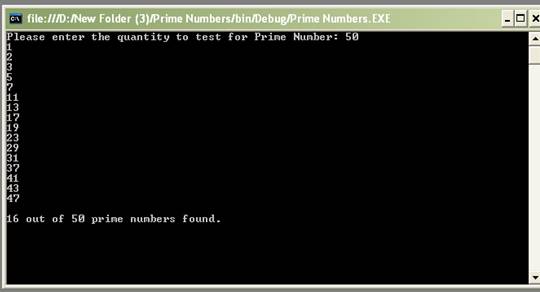
PrimeNumbers In C#.Net


Some points in the rar file are listed below:
  • Finding Prime Numbers
  • Which All Prime Numbers Are Found In That Range
  • How Many Prime Numbers Are There In That Range
Click to Download Project File:
 
Prime Numbers

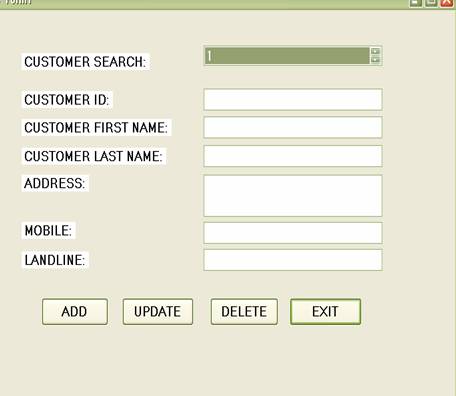
Add,Delete,and Update Records


Some points in the rar file are listed below:
  • How To Save Data Into DataBase
  • How To Delete Data From DataBase 
  • How To Update Data From DataBase 
  • How To Bind Data To ListBox 
Click to Download Project File:
 
Add, Delete, Update Data